
这篇文章主要介绍了vscode配置setting.json文件实现eslint自动格式代码,本文通过实例代码给大家介绍的非常详细,对大家的学习或工作具有一定的参考借鉴价值,需要的朋友可以参考下
一、ESlint+Vetur 实现ESlint代码规范


二、重点—-旧版本(旧版本配置在setting.json 会出现警告)
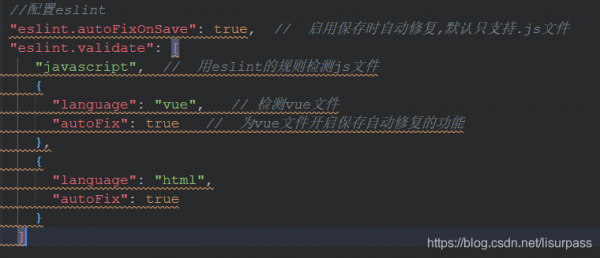
{
“eslint.autoFixOnSave”: true,
“eslint.validate”: [
“javascript”,
{
“language”: “vue”,
“autoFix”: true
},
{
“language”: “html”,
“autoFix”: true
}
]
}
三、新版配置—-新版本


{
“editor.codeActionsOnSave”: {
“source.fixAll.eslint”: true
},
“eslint.probe”: [“javascript”, “vue”, “html”]
}
以下是对自己vscode-settings.json 做一个记录(仅供参考)
{
//设置文字大小
“editor.fontSize”: 18,
//设置文字行高
“editor.lineHeight”: 24,
//开启行数提示
“editor.lineNumbers”: “on”,
// 在输入时显示含有参数文档和类型信息的小面板。
“editor.parameterHints.enabled”: true,
// 调整窗口的缩放级别
“window.zoomLevel”: 0,
// 文件目录
“workbench.iconTheme”: “vscode-icons”,
// 设置字体
“editor.fontFamily”: “Droid Sans Mono, Courier New, monospace, Droid Sans Fallback”,
// 自动换行
“editor.wordWrap”: “on”,
// 自定义vscode面板颜色
“workbench.colorCustomizations”: {
“tab.activeBackground”: “#253046”, // 活动选项卡的背景色
“activityBar.background”: “#253046”, //活动栏背景色
“sideBar.background”: “#253046”, //侧边栏背景色
“activityBar.foreground”: “#23f8c8”, //活动栏前景色(例如用于图标)
“editor.background”: “#292a2c” //编辑器背景颜色
},
// vscode默认启用了根据文件类型自动设置tabsize的选项
“editor.detectIndentation”: false,
// 重新设定tabsize
“editor.tabSize”: 2,
// #每次保存的时候自动格式化
“editor.formatOnSave”: true,
// #让函数(名)和后面的括号之间加个空格
“javascript.format.insertSpaceBeforeFunctionParenthesis”: true,
// #这个按用户自身习惯选择
“vetur.format.defaultFormatter.html”: “js-beautify-html”,
// #让vue中的js按编辑器自带的ts格式进行格式化
“vetur.format.defaultFormatter.js”: “vscode-typescript”,
// 保存时运行的代码ESLint操作类型。
“editor.codeActionsOnSave”: {
“source.fixAll.eslint”: true
},
// 添加emmet支持vue文件
“emmet.includeLanguages”: {
“wxml”: “html”,
“vue”: “html”
},
// 两个选择器中是否换行
“minapp-vscode.disableAutoConfig”: true,
//快速预览(右侧)
“editor.minimap.enabled”: true,
// tab 代码补全
“files.associations”: {
“*.wpy”: “vue”,
“*.vue”: “vue”,
“*.cjson”: “jsonc”,
“*.wxss”: “css”,
“*.wxs”: “javascript”
},
// 用来配置如何使用ESLint CLI引擎API启动ESLint。 默认为空选项
“eslint.options”: {
“extensions”: [“.js”, “.vue”]
},
// 在onSave还是onType时执行linter。默认为onType。
“eslint.run”: “onSave”,
// 启用ESLint作为已验证文件的格式化程序。
“eslint.format.enable”: true,
// 语言标识符的数组,为此ESLint扩展应被激活,并应尝试验证文件。
“eslint.probe”: [“javascript”, “javascriptreact”, “vue-html”, “vue”, “html”],
//关闭rg.exe进程 用cnpm导致会出现rg.exe占用内存很高
“search.followSymlinks”: false,
// 给js-beautify-html设置属性隔断
“vetur.format.defaultFormatterOptions”: {
“js-beautify-html”: {
“wrap_attributes”: “force-aligned”,
“max_preserve_newlines”: 0
}
},
// style默认偏移一个indent
“vetur.format.styleInitialIndent”: true,
// 定义匿名函数的函数关键字后面的空格处理。
“javascript.format.insertSpaceAfterFunctionKeywordForAnonymousFunctions”: true,
// 定义函数参数括号前的空格处理方式。
“typescript.format.insertSpaceBeforeFunctionParenthesis”: true,
// 新版本消息
“vsicons.dontShowNewVersionMessage”: true,
// 控制资源管理器是否在把文件删除到废纸篓时进行确认。
“explorer.confirmDelete”: true,
// 使用eslint-plugin-vue验证<template>中的vue-html
“vetur.validation.template”: false,
// 指定用在工作台中的颜色主题。
“workbench.colorTheme”: “One Dark Pro”
}
总结
到此这篇关于vscode配置setting.json文件实现eslint自动格式代码的文章就介绍到这了,更多相关vscode 配置eslint自动格式化内容请搜索脚本之家以前的文章或继续浏览下面的相关文章希望大家以后多多支持脚本之家!